App Store Screenshot Generator

Create stunning, professional screenshots for your iOS App Store page. Our free online tool supports iPhone and iPad sizes, custom backgrounds, fonts, and colors to boost your app's appeal. Runs locally in your browser.

Advertisement
Advertisement

An App Store screenshot generator creates professional marketing screenshots for App Store and Google Play listings. It overlays your app screenshots on device frames, adds marketing text, and exports at the exact dimensions required by Apple and Google. This tool composites images using the Canvas API -- all processing is local, making it safe for unreleased app content.

Create App Store screenshots without uploading your app images

iPhone and iPad sizes, custom backgrounds, gradients, fonts, and colors. Exact Apple-required dimensions. All processed locally — safe for unreleased apps under NDA.

App Store ready
NDA-safe
Free unlimited

How to use

  1. 1

    Pick device

    Choose iPhone or iPad size and portrait or landscape orientation.

  2. 2

    Set background

    Pick a solid color or gradient that matches your app's brand.

  3. 3

    Add text

    Write a short headline and subtitle highlighting the feature or benefit.

  4. 4

    Upload screenshot

    Drop your raw app screenshot into the frame and adjust its position.

  5. 5

    Fine-tune

    Tweak colors, sizing, and spacing until the composition looks right.

  6. 6

    Download

    Export a high-res JPG at Apple's required dimensions, ready for App Store Connect.

Why Use Our Screenshot Generator?

Create professional App Store screenshots that help users understand your app at a glance.

Full Creative Control

Customize backgrounds, gradients, fonts, colors, screenshot size, and position. Every change updates in real time.

Fast & Private

Everything happens locally in your browser. No uploads, no server rendering, no waiting — ideal for unreleased apps.

App Store Ready

Exact pixel dimensions for 6.5-inch iPhone and 12.9-inch iPad Pro. Exported JPGs match App Store Connect requirements.

Live Preview

See every edit instantly. Iterate through colors, layouts, and copy in seconds instead of minutes.

No Sign-up, No Watermark

Free to use, no account needed, and you keep full ownership of every exported screenshot.

Browser-Based

Works on any modern device. No Sketch, Figma, or Photoshop required.

Advertisement

Understanding App Store Screenshots

App Store screenshot requirements

Both Apple App Store and Google Play Store require screenshots at specific dimensions for app listings. Apple requires screenshots for each device type: 6.7-inch (1290×2796), 6.5-inch (1242×2688), 5.5-inch (1242×2208), and iPad 12.9-inch (2048×2732). Google Play requires a minimum of 2 screenshots (320×320 to 3840×3840) and recommends 1080×1920 or higher. Both stores accept PNG and JPEG formats, with a maximum file size of 8 MB (Apple) or unlimited (Google, but practically 2-3 MB per screenshot).

Effective app store screenshots are marketing assets, not just raw captures. The most successful apps use screenshots that tell a story: the first screenshot shows the main value proposition with a bold headline, subsequent screenshots highlight key features with concise descriptions, and the final screenshot shows social proof (ratings, user counts) or a call to action. The text overlay should be large enough to read on a mobile screen (at least 40px equivalent) and use high-contrast colors. Including a device frame (iPhone or Android mockup) around the screenshot adds context and makes the screenshot look more professional.

Our tool automates the compositing process: you upload a raw app screenshot, choose a device frame, add marketing text (headline and subheadline), and select a background color or gradient. The tool uses the Canvas API to composite these elements at the exact dimensions required by each device type. The device frame is overlaid on the background, the screenshot is placed inside the frame's screen area, and the text is rendered above or below the device. The result is exported as PNG at the required resolution.

Advertisement

Best practices for conversion-optimized screenshots

Research shows that screenshots are the most influential factor in app install decisions -- more than the app description, icon, or ratings. Users typically look at the first 3 screenshots before deciding to install. The first screenshot should immediately communicate what the app does and why it's valuable -- use a bold headline (5-7 words) and show the app's main screen. Avoid showing login or settings screens in the first 3 screenshots -- show the core functionality.

Use consistent branding across all screenshots -- same font, color scheme, and design language. Keep text concise -- users scroll quickly, so each headline should be scannable in 1-2 seconds. Use a maximum of 5-7 screenshots (Apple allows up to 10, but more is not always better -- users may not scroll past 5). Localize screenshots for major markets -- translated headlines and culturally appropriate imagery significantly improve conversion rates in non-English markets. A/B test different screenshot sets using Apple's Product Page Optimization or Google Play's Store Listing Experiments.

Design your screenshot visually

Pick a device size, set a branded background, add headline and subtitle, then drop in your raw app screenshot. Every change updates in real time so you can iterate colors, spacing, and typography without leaving the browser.
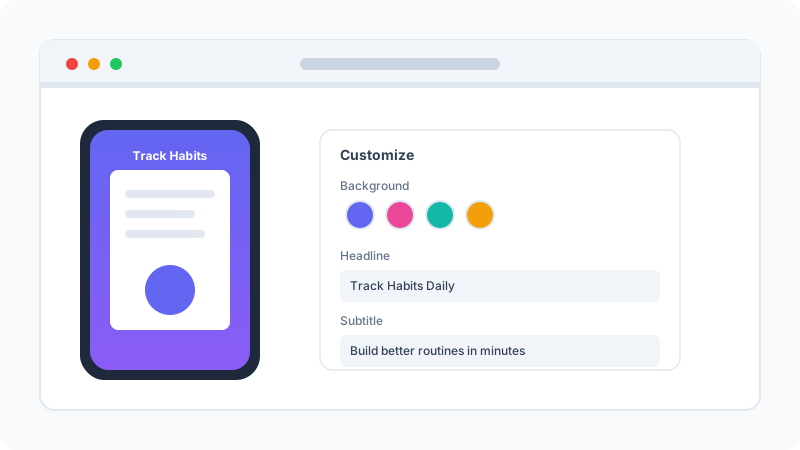
Design an App Store screenshot with background, text, and device frame

Export exact App Store sizes

Download high-resolution JPGs at the exact dimensions Apple requires for iPhone and iPad. No manual cropping, no guesswork — just upload to App Store Connect and submit.
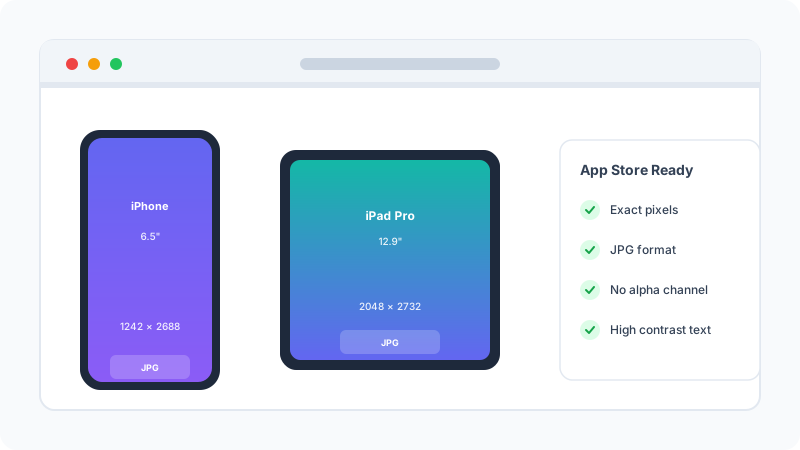
Export screenshots in iPhone and iPad sizes for App Store Connect
Advertisement

Why App Store Screenshots Matter

Screenshots are the first thing users see and the biggest driver of install decisions.

First Impression

Your first 1-3 screenshots appear in search results. Polished ones can lift install conversion by 25-40%.

Users Scroll, Don't Read

Only 5-10% of users read the full description. Screenshots must communicate value visually.

Localization

Translated screenshot text can boost conversion by 20-35% in non-English markets.

Review Guidelines

Apple requires screenshots to accurately represent your app. Our frame helps you stay compliant.

A/B Testing

Generate multiple variants quickly for App Store Connect Product Page Optimization tests.

Indie Advantage

Get designer-quality output without expensive tools, leveling the playing field for small teams.

How does this compare to other screenshot generators?

A side-by-side comparison of popular App Store screenshot tools.

FeatureNovaToolsLaunchKitScreenshot.rocks
Privacy (no upload)100% browserUploads to serverUploads to server
All device framesiPhone + Android
Custom text overlayHeadline + subLimited
Background gradientCustom colors
Free unlimitedFreemiumFreemium
No registrationRequiredRequired

Server-based screenshot generators require uploading your app screenshots -- a concern for unreleased apps under NDA. Our tool composites screenshots locally using the Canvas API, with no uploads and no registration.

FAQ

Is this screenshot generator free to use?
Yes, this tool is 100% free. There are no watermarks, no sign-ups, no usage limits, and no premium tier. You can generate as many App Store screenshots as you need for as many apps as you ship, on as many devices as you target. The tool is sustained by non-intrusive advertising rather than paywalls. You retain full ownership of every screenshot you export — there is no attribution required and no license restriction on commercial use.
Are my uploaded screenshots private?
Absolutely. The entire process runs in your browser. Your raw app screenshots are never uploaded to our servers, never stored in a database, and never sent to a third-party API for processing. The tool loads your images into the browser's memory, composites them with the background and text you choose, and exports the final JPG locally. This makes the tool safe to use for unreleased apps under NDA, beta builds, or proprietary features that have not yet been announced.
What device sizes are supported?
We currently support the most common sizes required by Apple for the 6.5-inch iPhone family (iPhone 11 Pro Max, iPhone 12 Pro Max, iPhone 13 Pro Max, iPhone 14 Plus, iPhone 15 Pro Max — 1242 x 2688 px) and the 12.9-inch iPad Pro (2048 x 2732 px). These are the primary sizes required for an App Store submission in 2026. Apple occasionally updates the required sizes when new devices launch, and we update the tool to match within a few weeks of new device availability.
Can I customize the font size and color?
Yes. In the Text Content section, check the 'Customize Text Colors & Size' box. This reveals sliders for font size and color pickers for both the title and subtitle. You can choose any color using the hex picker, adjust font size from 24px to 120px, and use different colors for the title and subtitle. The preview updates in real time so you can see the result immediately. You can also pick from preset color palettes if you do not want to dial in custom hex values.
What is the best background for App Store screenshots?
The best backgrounds are simple, high-contrast, and consistent across all screenshots in a set. Solid colors that match your app's brand work well. Gradients add visual interest without distracting from the app screenshot. Avoid busy patterns, photographs, or stock imagery behind the device — they compete with the app screenshot for attention. Aim for at least 4.5:1 contrast between your text and background to ensure readability on small phone screens and in low-light conditions.
Should I use screenshots or mockups?
Use real app screenshots, not generic mockups. Apple's App Store Review Guidelines (Section 2.3.3) require screenshots to accurately represent the app's actual functionality, not idealized or simulated states. Our tool helps you present real screenshots in a polished marketing frame with custom backgrounds and headlines, but the underlying screenshot must be a true capture of your app in action. Using fake mockups that misrepresent your app's features will result in App Store rejection.
How many screenshots should I upload to App Store Connect?
Apple allows up to 10 screenshots per device size per language. We strongly recommend uploading the maximum of 10 for your primary device size. The first 3 screenshots are the most important — they appear in search results and are the primary driver of install conversion. The remaining 7 are visible on the app's product page and help users understand secondary features. Localization matters: screenshots translated into the user's native language can boost conversion by 20-35% in non-English markets.
Can I export screenshots for multiple device sizes at once?
Currently, you generate screenshots one device size at a time. The typical workflow is: design your first screenshot at 6.5-inch iPhone size, then switch to 12.9-inch iPad Pro and re-render the same design for the larger canvas. The text content, background, and font settings are preserved when you switch device sizes — only the canvas dimensions change. For full sets across multiple device sizes, plan to spend 10-15 minutes per screenshot design.
What file format and resolution are the exported screenshots?
Screenshots are exported as JPG files at the exact pixel dimensions required by Apple (1242 x 2688 for 6.5-inch iPhone, 2048 x 2732 for 12.9-inch iPad Pro). JPG is preferred over PNG for App Store screenshots because Apple's review system handles both, but JPGs are significantly smaller (200-500 KB vs 2-5 MB for PNG) and load faster in search results on cellular connections. Quality is set to 90% by default, which is visually lossless for this type of content.
Can I add a device frame around my screenshot?
Our current tool does not add device frames (the physical iPhone/iPad bezel around the screenshot). Apple's App Store Review Guidelines actually discourage device frames in screenshots because they take up valuable screen space and can misrepresent the actual device experience. Most top-ranking apps today use frameless screenshots with custom backgrounds and bold marketing text, which is what our tool is designed to produce. If you need device frames, you can composite them in a separate tool like Figma or Sketch.
Will my screenshots pass Apple's review process?
Yes, as long as the underlying app screenshots accurately represent your app's actual functionality. Our tool handles the technical requirements (exact pixel dimensions, JPG format, no alpha channel) and the design conventions (clean backgrounds, readable typography, high contrast) that Apple expects. Common rejection reasons include: screenshots showing features the app does not have, screenshots showing another company's branding, screenshots with text in a language not supported by the app, and screenshots with visible bugs or placeholder content.
Can I use this tool for Google Play Store screenshots too?
The exported JPG files are standard image files that can technically be uploaded to Google Play Store as well, but the dimensions are tuned for iOS. Google Play requires screenshots at 16:9 or 9:16 aspect ratio (320px to 3840px) and accepts PNG or JPG. To use this tool for Android screenshots, you would need to manually adjust the design for the 16:9 aspect ratio. We are considering adding Google Play screenshot presets in a future release.

Your Privacy is Our Priority

This tool runs entirely in your browser.

  • We do not upload, store, or analyze your screenshot images.
  • Everything you process stays on your device.
  • There is no server-side processing, no cloud storage, and no analytics tracking your visual content.
  • You can use this tool on unreleased apps under NDA, beta builds, or proprietary features that have not yet been announced, with complete confidence — your data never leaves your computer.

Even if your internet connection drops mid-design, your work remains safe on your device.

You might also like

Helpful guides

Advertisement