100% Private
Files are merged locally in your browser. Nothing is uploaded to a server, stored in a database, or sent to a third party.
Combine multiple PDF files into a single document for free. Our tool merges PDFs securely in your browser. No uploads, no registration required. Drag, drop, reorder, and download in seconds.
Combine multiple PDFs into one document, right in your browser. No uploads, no sign-up, no watermarks — just drag, drop, and merge.
Upload or drag multiple PDFs into the queue. Review names, pages, and file sizes.
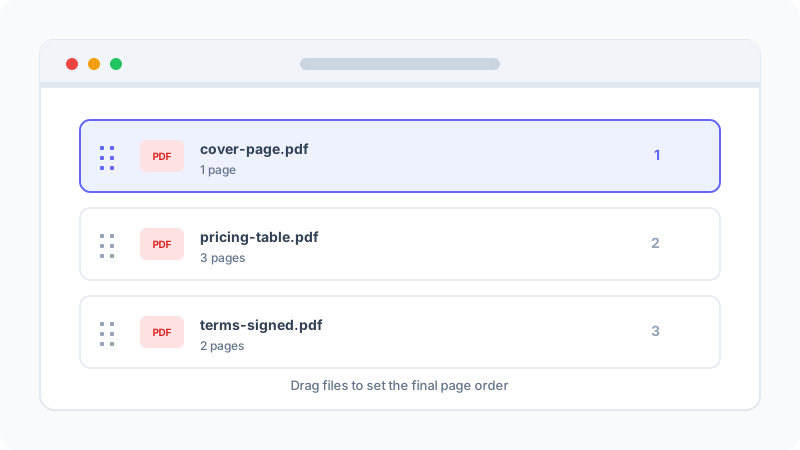
Drag and drop files to set the correct page sequence. Remove mistakes with one click.
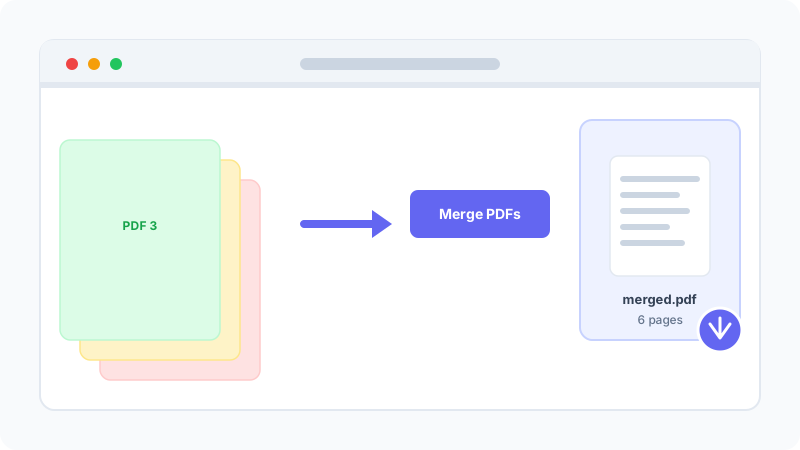
Hit the Merge PDFs button. Your files are combined locally in the browser in seconds.
Scroll through the merged PDF to verify page order, orientation, and content.
Save the final merged PDF to your device. It is never stored on our server.
Merge PDFs quickly, privately, and without installing anything.
Files are merged locally in your browser. Nothing is uploaded to a server, stored in a database, or sent to a third party.
Open the page, drag and drop your files, reorder, and merge. No installation, no sign-up, no waiting.
Free for personal and commercial use. No watermarks, no file size caps, no daily quotas.
Page-level concatenation preserves every font, image, and vector exactly as in the original files.
Works on Windows, macOS, Linux, iOS, Android, and ChromeOS — any modern browser.
Drag and drop to arrange files before merging. Remove mistakes with one click.
When you merge PDF files, the merger takes each source document and copies its pages — along with all embedded fonts, images, vector graphics, and content streams — into a single new PDF file. The pdf-lib library performs this at the page level, meaning each page from each source file is appended to the output in the order you specify. The result is a single, contiguous PDF document that preserves every visual element from the original files.
Importantly, this process is lossless. Unlike re-saving a JPEG or re-encoding a video, merging PDFs does not re-compress or re-encode any content. The fonts, images, and vectors in the merged output are byte-for-byte identical to those in the source files. This is why the merged file size is approximately the sum of the input file sizes — no data is added or removed, only reorganized into a single container.
Merging is the right choice when you have multiple PDF files that you want to combine into a single document for sending, archiving, or sharing. Common scenarios include combining signed contract pages, assembling invoice bundles for accounting, or creating a complete HR onboarding packet from individual forms.
If you need to combine images (JPG, PNG) into a PDF, use our Image to PDF tool instead — it handles image-to-page conversion with options for page size, orientation, and margins. If you need to extract specific pages from a large PDF, use our Split PDF tool. And if your merged PDF is too large to email, run it through our PDF Compressor to strip redundant metadata and optimize the structure.
When merging 20+ files, give each source file a descriptive name with a numeric prefix (e.g., '01-cover-letter.pdf', '02-pricing.pdf') before uploading. This makes it easy to verify the correct order in the drag-and-drop interface. After merging, always scroll through the output to confirm that page transitions between source files are correct — occasionally, a source PDF with an unusual page size or orientation can cause visual discontinuities.
Common ways professionals and teams use our PDF merger.
Combine cover letter, pricing sheet, case studies, and T&Cs into one polished proposal PDF.
Merge monthly invoices and receipts into a single file for accounting and bookkeeping.
Assemble offer letters, NDA, tax forms, and ID scans into one complete employee packet.
Combine pleadings, exhibits, and certificates of service into one court-ready PDF.
Upload your PDFs and arrange them in the right order with simple drag and drop. The sequence you set is exactly how pages appear in the final document. Remove mistakes with one click before merging.
Hit the Merge PDFs button and your browser concatenates every page locally. The output keeps original fonts, images, and formatting intact, then downloads as a single file ready to share.
Any time you need to send, archive, or share several documents as one organized file.
Combine cover pages, pricing, case studies, and terms into a single professional attachment.
Bundle invoices, receipts, and reports so accounting gets one file instead of many.
Merge forms, ID scans, and signed documents into one complete onboarding file.
Assemble reports, charts, and notes into one document for review and submission.
Combine pleadings and exhibits into a single PDF ready for e-filing.
Archive taxes, insurance, medical docs, and warranties by year or category.
A side-by-side comparison of popular PDF merging tools.
| Feature | NeatForge | ILovePDF | SmallPDF | Adobe Acrobat |
|---|---|---|---|---|
| Privacy (no upload) | 100% local | Uploads to server | Uploads to server | Uploads to cloud |
| Free daily limit | Unlimited | 2 files/day | 2 files/day | trial |
| Registration required | No | Yes (for >2 files) | Yes (for >2 files) | Yes |
| Drag & drop reorder | ||||
| Watermark on free tier | No | No | No | Yes |
| Lossless quality | ||||
| Works offline | After page load | |||
| Mobile friendly | Limited |
All server-based tools temporarily store your files during processing. Our tool never transmits your PDFs — merging is 100% local in your browser.
Quick answers to common questions about merging PDFs.
This tool runs entirely in your browser.
Even if your internet connection drops mid-merge, your files remain safe on your device.
Compress a proposal PDF for email without making text blurry or unsearchable. Compare lossless and image compression, optimize source images, and verify the final file before sending.
Turn scanned pages into a compact, readable PDF. Choose practical DPI and image settings, keep pages in order, and create a shareable document locally in your browser.
Convert Markdown to Word (DOCX) and back online for free — private, browser-based, with images embedded automatically.
Write useful alt text for product images without keyword stuffing. Learn concise e-commerce patterns for screen readers, image search, and accessible product pages.
Learn how word counting works, what counts as a word, the difference between characters with and without spaces, and how reading time is estimated.